
Android updates always bring exciting improvements, but the real magic is often hidden inside the settings menu. Android 16 secret settings are not “illegal” or risky hacks—these are advanced system options that Google includes for power users, developers, and people who want more control over their phone.
In this guide, you’ll discover the most useful Android 16 hidden features, including performance boosters, privacy upgrades, battery-saving tweaks, UI customization tricks, and developer settings that can seriously improve your everyday experience.
Whether you’re using a Pixel phone, Samsung, OnePlus, Xiaomi, or any Android device running Android 16, many of these settings will be available (some may look slightly different depending on the brand).
Let’s unlock the hidden power of Android 16.
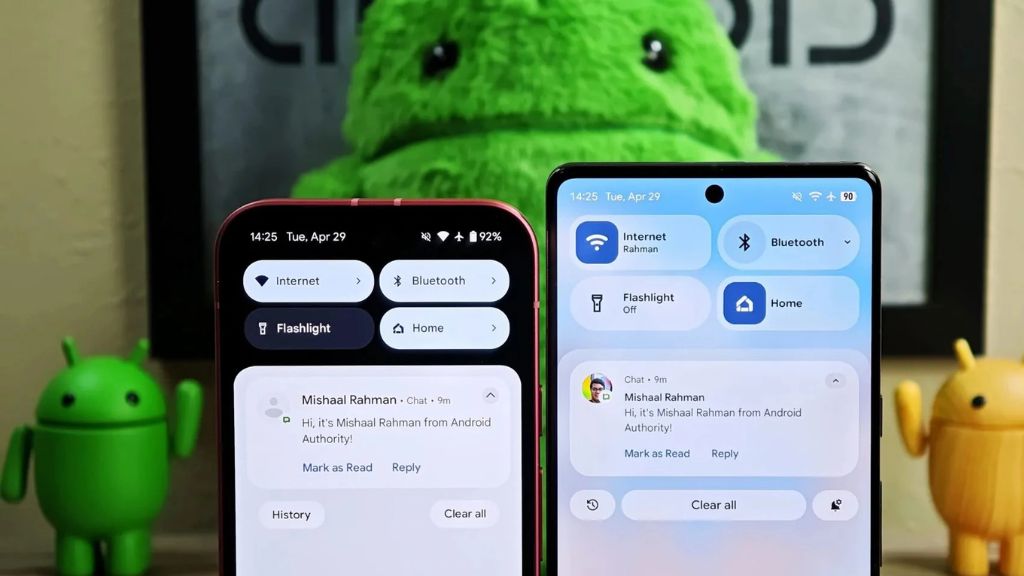
Why Android 16 Secret Settings Matter
Most users keep their phone on default settings. That’s fine, but Android 16 gives you more control than ever before.
These hidden settings can help you:
- Improve phone speed and smoothness
- Extend battery backup
- Protect your privacy
- Reduce background app tracking
- Customize animations and UI
- Get better app control
- Boost gaming performance
- Make your device feel “new” again
The best part? You don’t need any extra apps for most of these.
1) Enable Developer Options (The Gateway to Secret Settings)
Before we jump into the advanced features, you need to enable Developer Options. This is the main door to many Android 16 hidden controls.
How to Enable Developer Options
- Open Settings
- Go to About Phone
- Tap Build Number 7 times
- Enter your lock screen PIN/password
- Developer Options will appear in Settings
Now go to:
Settings → System → Developer Options
(or search “Developer Options” in Settings search bar)
2) Reduce Animations for Faster Performance
Android looks beautiful because of animations, but they also use processing power. If you want a faster and snappier feel, reducing animations is one of the best Android 16 secret settings.
What to Change
Go to Developer Options and set:
- Window animation scale → 0.5x
- Transition animation scale → 0.5x
- Animator duration scale → 0.5x
You can even set them to Off, but 0.5x is a perfect balance.
✅ Result: Your phone feels faster instantly.
3) Force Peak Refresh Rate (Smoother Scrolling)
Many phones support 90Hz, 120Hz, or even higher refresh rates—but they don’t always stay active to save battery.
Android 16 may include options like:
- Force peak refresh rate
- High refresh rate mode
- Smooth display
Enable It
Go to:
Settings → Display → Smooth Display / Refresh Rate
Set it to Highest available.
✅ Best for: gaming, scrolling, smooth UI
⚠️ Note: It may consume more battery.
4) Battery Optimization: Stop Battery Drain from Hidden Background Apps
Battery drain often comes from apps running silently in the background.
Use Android 16 Battery Controls
Go to:
Settings → Battery → Battery Usage
Check:
- Which apps consume the most power
- Background activity status
- Screen-on usage
Turn On Adaptive Battery
Settings → Battery → Adaptive Battery → ON
This helps Android learn your usage patterns and limit unnecessary background work.
5) Restrict Background Apps (Secret Power Saving Trick)
Some apps keep running even when you don’t use them—social apps, shopping apps, games, etc.
Do This
Go to:
Settings → Apps → See all apps → (select app) → Battery
Choose:
- Restricted (best for battery)
- Optimized (default)
- Unrestricted (avoid unless necessary)
✅ Great for: saving battery + reducing heating
⚠️ Warning: Don’t restrict apps like WhatsApp if you want instant notifications.
6) Android 16 Privacy Secret Settings (Must Enable)
Privacy is one of the strongest reasons people love Android.
A) Disable App Tracking Permissions
Go to:
Settings → Privacy → Permission Manager
Check permissions like:
- Location
- Camera
- Microphone
- Contacts
- SMS
- Files & media
Remove access for apps that don’t need it.
B) Turn Off Microphone & Camera Access (Instant Privacy Lock)
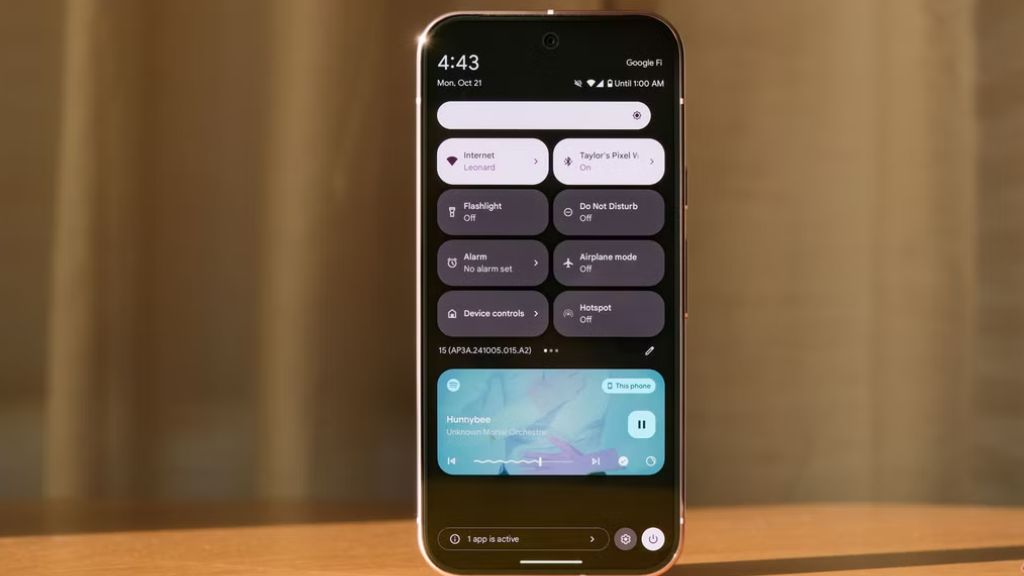
Android includes quick toggles that block microphone/camera system-wide.
Go to:
Settings → Privacy → Privacy Controls
Enable:
- Camera access
- Microphone access
Then control it quickly from Quick Settings panel.
C) Use Approximate Location
Many apps don’t need exact location.
Go to:
Settings → Location → App location permissions
Choose:
- Approximate
instead of Precise
✅ Improves privacy instantly.
7) Hidden “App Pinning” for Security
This is one of the most underrated Android 16 secret settings.
App Pinning locks your phone to one app only—perfect when giving your phone to someone temporarily.
Enable App Pinning
Go to:
Settings → Security → More security settings → App pinning
Turn ON:
- Use app pinning
- Ask for PIN before unpinning (recommended)
Now open recent apps → tap app icon → Pin
8) Smart Lock Alternatives: Keep Phone Unlocked in Safe Places
Android has trusted features to reduce repeated unlocking.
Depending on your device, you may see:
- Trusted places
- Trusted devices (Bluetooth watch, earbuds)
- On-body detection
Go to:
Settings → Security → More security settings → Extend Unlock / Smart Lock
✅ Best for: home/office comfort
⚠️ Avoid using it in public areas.
9) Improve Gaming Performance (Secret Settings for Gamers)
If you play BGMI, Free Fire, COD Mobile, or Asphalt, Android 16 can help optimize performance.
A) Enable Game Mode / Game Booster (if available)
Many brands include:
- Game Turbo
- Game Booster
- Gaming Mode
You’ll find it in:
Settings → Special Features / Advanced Features / Games
B) Force GPU Rendering (Use Carefully)
Developer Options includes:
- Force GPU rendering
This can improve performance in some apps, but may cause glitches in others.
Recommendation: Try it for a day, then decide.
10) Hidden Notification Control: Stop Spam Alerts
Notifications can ruin focus and waste battery.
Use Notification History
Go to:
Settings → Notifications → Notification history → ON
Now you can see removed notifications too.
Disable Sensitive Notifications on Lock Screen
Go to:
Settings → Notifications → Notifications on lock screen
Choose:
- Hide sensitive content
Perfect for privacy.
11) Android 16 Hidden “Default Apps” Control
Some apps quietly set themselves as default for browser, SMS, calling, etc.
Go to:
Settings → Apps → Default apps
Change defaults for:
- Browser
- Phone app
- SMS app
- Assistant app
- Caller ID & spam
This improves your control and security.
12) Secret Setting: Change DNS for Faster Internet + Privacy
This is a powerful Android feature.
Enable Private DNS
Go to:
Settings → Network & Internet → Private DNS
Select:
- Private DNS provider hostname
This can improve:
- Speed
- Privacy
- Ad-blocking (depending on DNS provider)
✅ Recommended for users who want safer browsing.
13) Hidden Auto-Update Control (Apps & System)
Many phones auto-update apps in the background, using battery and data.
Control Play Store Updates
Open Play Store → Settings → Network Preferences
- Auto-update apps → Choose Wi-Fi only or disable
System Updates
Go to:
Settings → System → Software update
Keep it on, but update at a convenient time.
14) Enable One-Handed Mode (Easy Use on Big Screens)
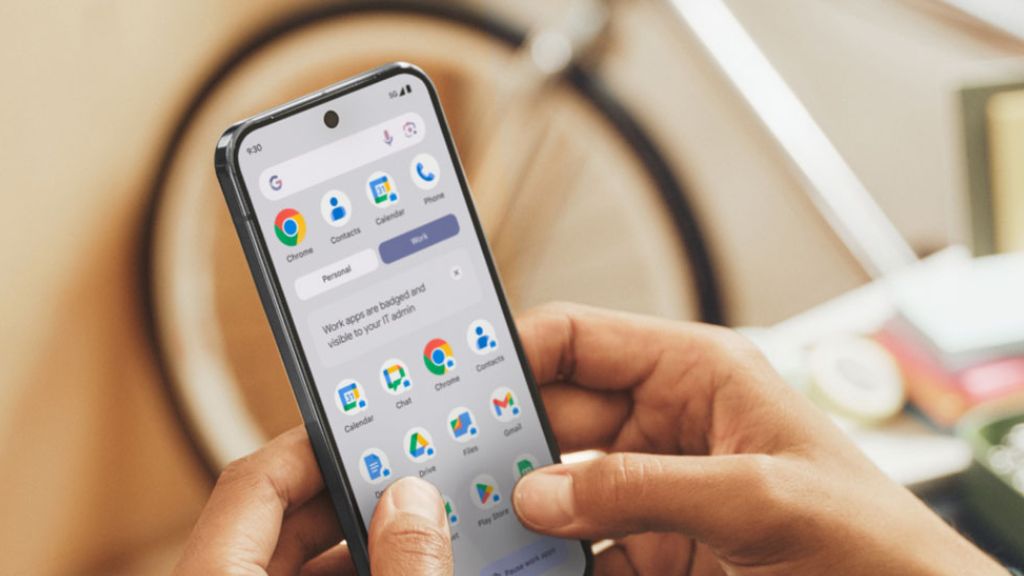
Android 16 continues to improve one-handed usability.
Go to:
Settings → System → Gestures → One-handed mode
Turn ON and choose:
- Pull down screen
- Use gesture navigation
Perfect for large devices.
15) Advanced Clipboard Control (Privacy + Productivity)
Android now protects clipboard content and clears it automatically after some time.
Go to:
Settings → Privacy → Clipboard access
Control which apps can read clipboard.
✅ Helps prevent clipboard data leaks.
16) Auto-Start Apps: The Hidden Reason Your Phone Feels Slow
On some brands (Xiaomi, Vivo, Oppo, Realme), apps auto-start silently.
Look for:
Settings → Apps → Auto-start / Startup manager
Disable unnecessary auto-start apps.
Result:
- Better speed
- Less battery drain
- Less background usage
17) Android 16 Accessibility Secret Features Everyone Can Use
Accessibility features aren’t only for special needs—many are super useful.
A) Live Caption
Auto-generates captions for videos.
Go to:
Settings → Accessibility → Live Caption
B) Magnification Shortcut
Quick zoom on screen.
C) Reduce Motion
If you feel dizziness from animations, enable reduced motion.
18) Advanced Wi-Fi Settings for Better Connectivity
Android 16 may offer improvements like:
- Wi-Fi scanning control
- Turn off Wi-Fi automatically
- Connect to best network automatically
Go to:
Settings → Network & Internet → Internet → Wi-Fi preferences
Turn off unnecessary scanning to save battery.
19) Digital Wellbeing Hidden Controls
If you want productivity, this is gold.
Go to:
Settings → Digital Wellbeing & parental controls
Use:
- Focus Mode
- Bedtime Mode
- App timers
- Notification control
It helps reduce distraction and improves sleep quality.
20) Secret Setting: Customize Quick Settings Tiles
Quick Settings is your phone’s control center.
Swipe down → tap edit icon → add/remove tiles like:
- Battery Saver
- Dark Mode
- Hotspot
- Screen Recorder
- Extra Dim
- Private DNS (if available)
- Nearby Share
This makes Android 16 faster to use daily.
Pro Tips: Make Android 16 Feel Premium
Here are quick pro-level improvements:
✅ Enable Dark Mode for comfort + battery (OLED screens)
✅ Disable unused apps instead of uninstalling (system apps)
✅ Clear app cache for heavy apps (Instagram, Chrome, YouTube)
✅ Use Adaptive Brightness for better battery balance
✅ Keep storage at least 15–20% free for smoother performance
Common Mistakes to Avoid
To stay safe while using Android 16 secret settings:
❌ Don’t enable random developer options you don’t understand
❌ Don’t restrict essential messaging apps if you need instant notifications
❌ Don’t force GPU rendering if your phone starts lagging or crashing
❌ Don’t use unknown VPN/DNS services blindly
❌ Don’t turn off system updates permanently
Android 16 Secret Settings FAQs (10)
1. What are Android 16 secret settings?
Android 16 secret settings are hidden or advanced options like Developer Options, privacy controls, and performance tweaks that are not commonly used by normal users but can improve the experience.
2. Are Android 16 hidden settings safe to use?
Yes, most settings are safe if used correctly. Avoid changing unknown developer options without understanding their function.
3. How do I unlock Developer Options in Android 16?
Go to Settings → About phone → Tap Build Number 7 times, then enter your lock PIN. Developer Options will appear.
4. Which Android 16 secret setting improves performance the most?
Reducing animation scales to 0.5x and restricting background battery usage for unnecessary apps can noticeably improve performance.
5. Will enabling high refresh rate reduce battery life?
Yes, forcing peak refresh rate improves smoothness but can reduce battery backup. Use it if you prioritize performance.
6. How can I stop battery drain in Android 16?
Use Adaptive Battery, restrict background activity for unused apps, and check battery usage stats to identify draining apps.
7. Can I hide sensitive notifications on lock screen?
Yes. Go to Settings → Notifications → Lock screen notifications and choose Hide sensitive content.
8. What is Private DNS in Android 16 and why should I use it?
Private DNS encrypts DNS requests, improving privacy and sometimes speed. It can also help block ads depending on the DNS provider.
9. Does Android 16 have a way to block camera and mic access?
Yes. Android 16 offers privacy toggles to disable Microphone access and Camera access system-wide.
10. What should I avoid changing in Developer Options?
Avoid changing settings related to OEM unlocking, background process limits, USB debugging, and unknown networking settings unless needed.
Final Thoughts
Android 16 is not just about new design and updates—it’s about control, privacy, speed, and customization. The best part is that many of the most powerful features are hidden inside the settings menu.
If you enable the right Android 16 secret settings, your phone will feel faster, cleaner, more secure, and more personalized—without installing any extra apps.
2 thoughts on “Android 16 Secret Settings: Hidden Features, Developer Tweaks & Power Tips to Unlock the Best Experience”